What does the PoE2 memory radar show?
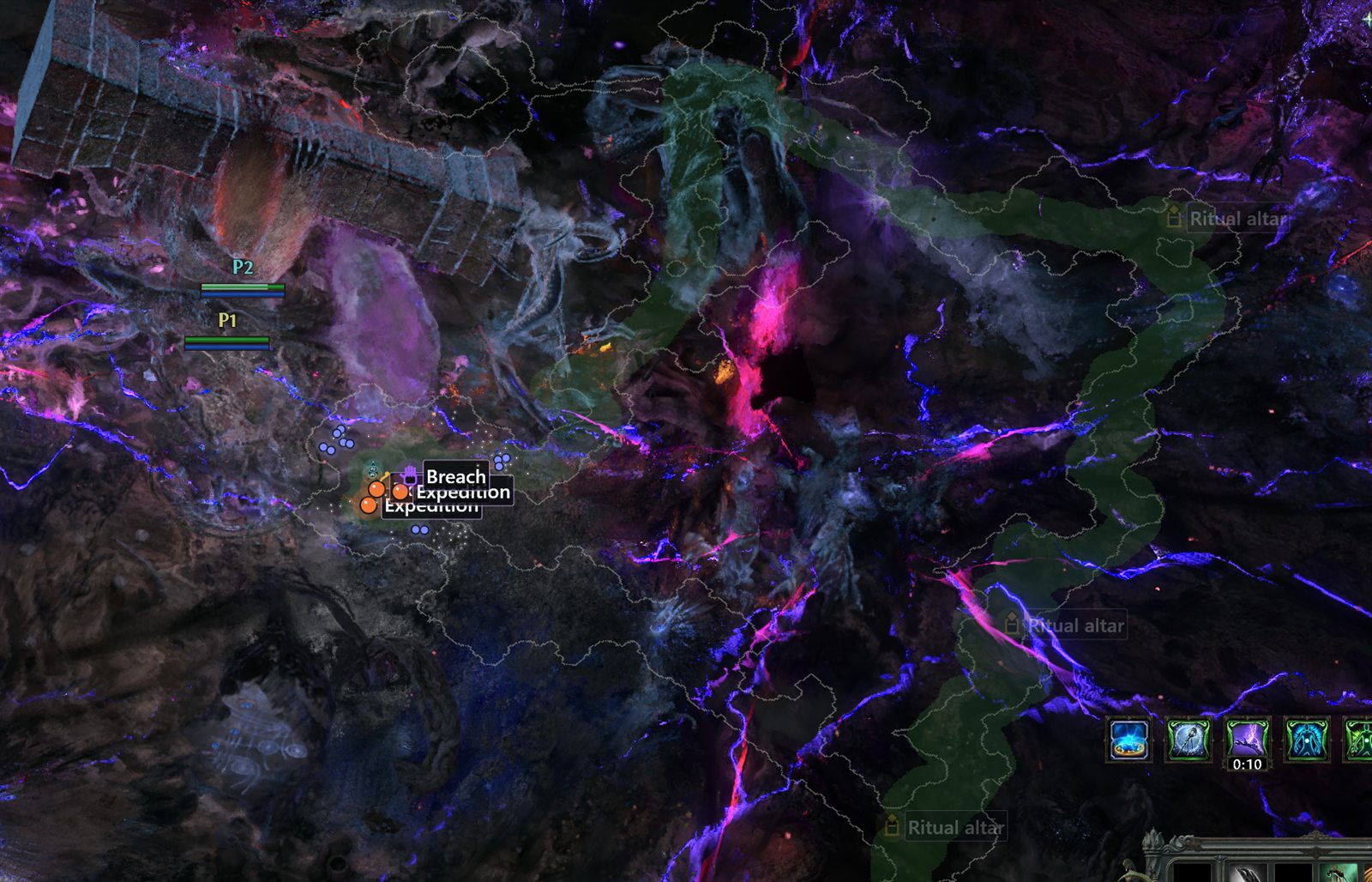
The radar uses read-only game data supplied by the app's Memory Reader. It draws a separate, click-through map layer over Path of Exile 2. Depending on your settings and the current area, it can show terrain, explored fog, players, exits, checkpoints, monsters, bosses, league mechanics and loot already exposed by your active item filter.
Important: this is not a second loot filter and it does not reveal drops your PoE2 filter hides. Think of it as a clearer map and styling layer over information the game and your chosen filter have already made available.
How the radar works with your item filter
Loot goes through three clear decisions. The order matters because it prevents the app from contradicting a carefully tuned in-game filter.
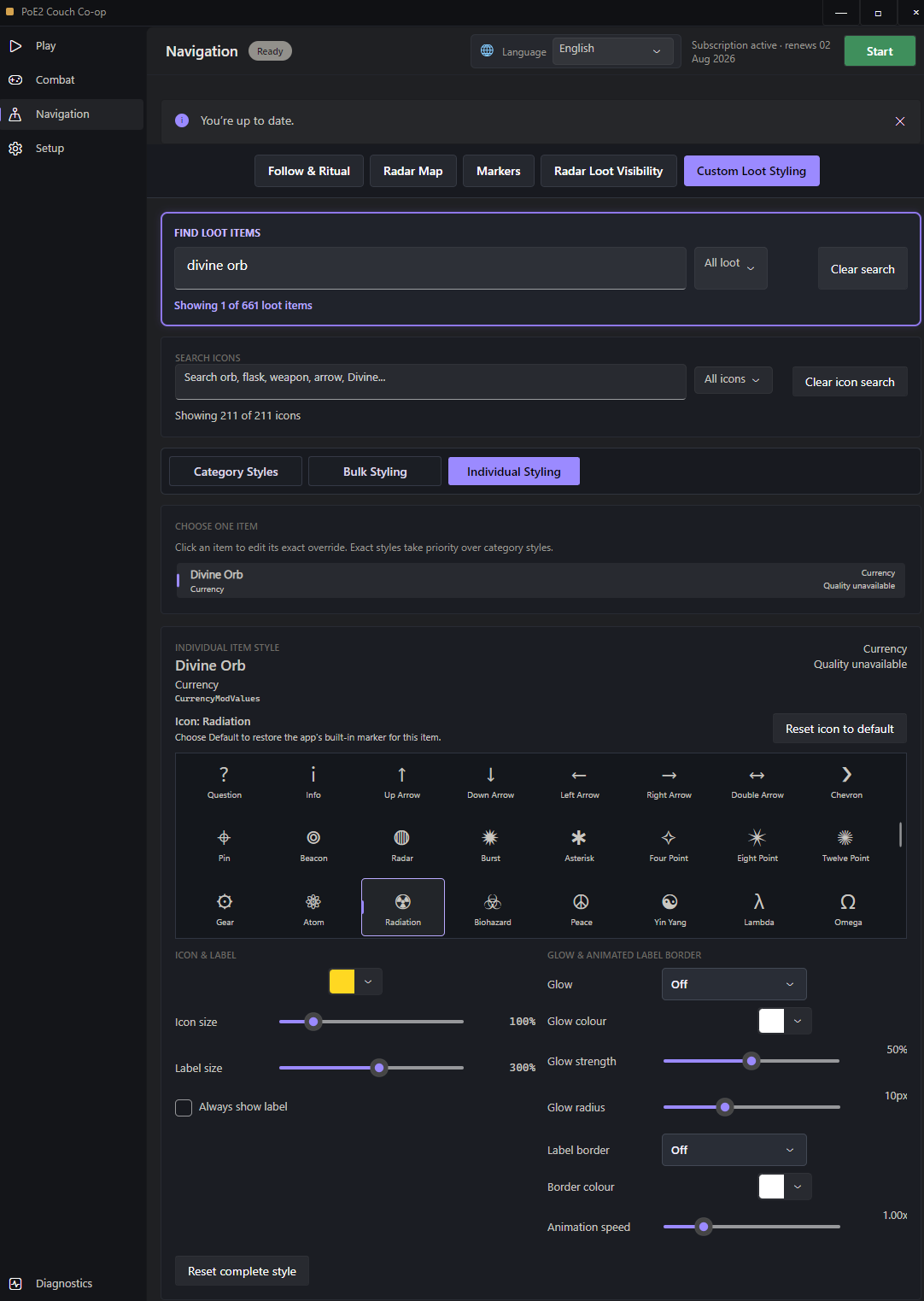
Category rules cover currency, weapons, armour, jewellery, flasks, Superior flasks, Superior equipment, gems, jewels and charms, plus other visible loot. Exact-item overrides take priority, which is useful when you want quiet currency labels generally but a prominent Divine Orb or Mirror marker.
The app does not guess unavailable item quality. When PoE2 exposes a real Quality component, quality above zero can route the item to a Superior category. Otherwise the item stays in its ordinary family.
Why Breach, Abyss, Expedition and Ritual can appear farther away
Not every marker benefits from the same range. An ordinary monster marker is useful near the player. Large league encounters are useful as navigation targets, so Breach, Abyss, Expedition and Ritual are retained across most of the readable map when the game has exposed them. This makes it easier to finish a map, then return to a mechanic without manually dragging the overlay around.
The map can centre on Player 1, Player 2 or the midpoint. If one character is confirmed dead, the current app automatically follows the surviving character instead of leaving the radar centred on the body.
Custom icons, labels, glow and animated borders
The Markers tab controls monsters and world objects. The Custom Loot Styling tab handles filter-visible items. Both use a searchable icon catalogue with more than 200 choices, including simple shapes, arrows and PoE-orb-inspired presets.
- Icon, Label or Both: remove text where the symbol is already enough.
- Icon and label scale: enlarge important markers up to 500%.
- Always show label: keep a selected exact item labelled even when its broader category is quiet.
- Glow: add a static or pulsing halo with adjustable colour, strength and radius.
- Label border: use a static or animated border and choose its colour and speed.
- Default: restore the app's original built-in icon instead of committing to a custom symbol.
When does the Ritual Tribute reminder appear?
The reminder is deliberately tied to PoE2's official Map Completed objective—not a specific boss and not an individual altar state. This matters because not every map objective is a boss and some special maps retain extra objectives.
If the current map contains Ritual and the official completion entry is detected, the app shows one brief, click-through reminder to spend or defer Tribute before leaving. It closes automatically and never takes controller focus away from the game.
Read-only design and performance
The Memory Reader reads live values and publishes a local feed to the radar helper. It does not write game memory or alter network traffic. Terrain frames can be large, so publication is throttled and the radar retains short-lived stable state through incomplete scans. Animation work only runs while a visible style actually needs it.
No third-party game utility can promise that policies will never change. Review the current Path of Exile rules and the Findigo risk disclosure, and use independent tools at your own discretion.
Radar setup and everyday controls
- Open the Findigo app before Path of Exile 2 and complete the normal P1/P2 pairing.
- Wait for live Memory Reader data on the Play or Diagnostics page.
- Open Navigation → Radar Map and turn the overlay on.
- Use the radar shortcut to show or hide it in-game. Tab remains the default.
- Set map opacity and centre mode, then adjust Markers and Radar Loot Visibility before adding detailed styling.
Starting with visibility is the least confusing route: first decide what deserves space, then customize how the remaining markers look.
Test it with your own filter
The three-hour trial includes the complete radar, current styling controls and the rest of the co-op app. No account or card is required.