
Wait for READY
Let every client finish loading. Do not press A until the pairing window says READY. The status sits on top of the game windows while it waits.
MultiPilot does one client and one player at a time, waits for each character to enter the game, then checks that they move independently before handing control back.
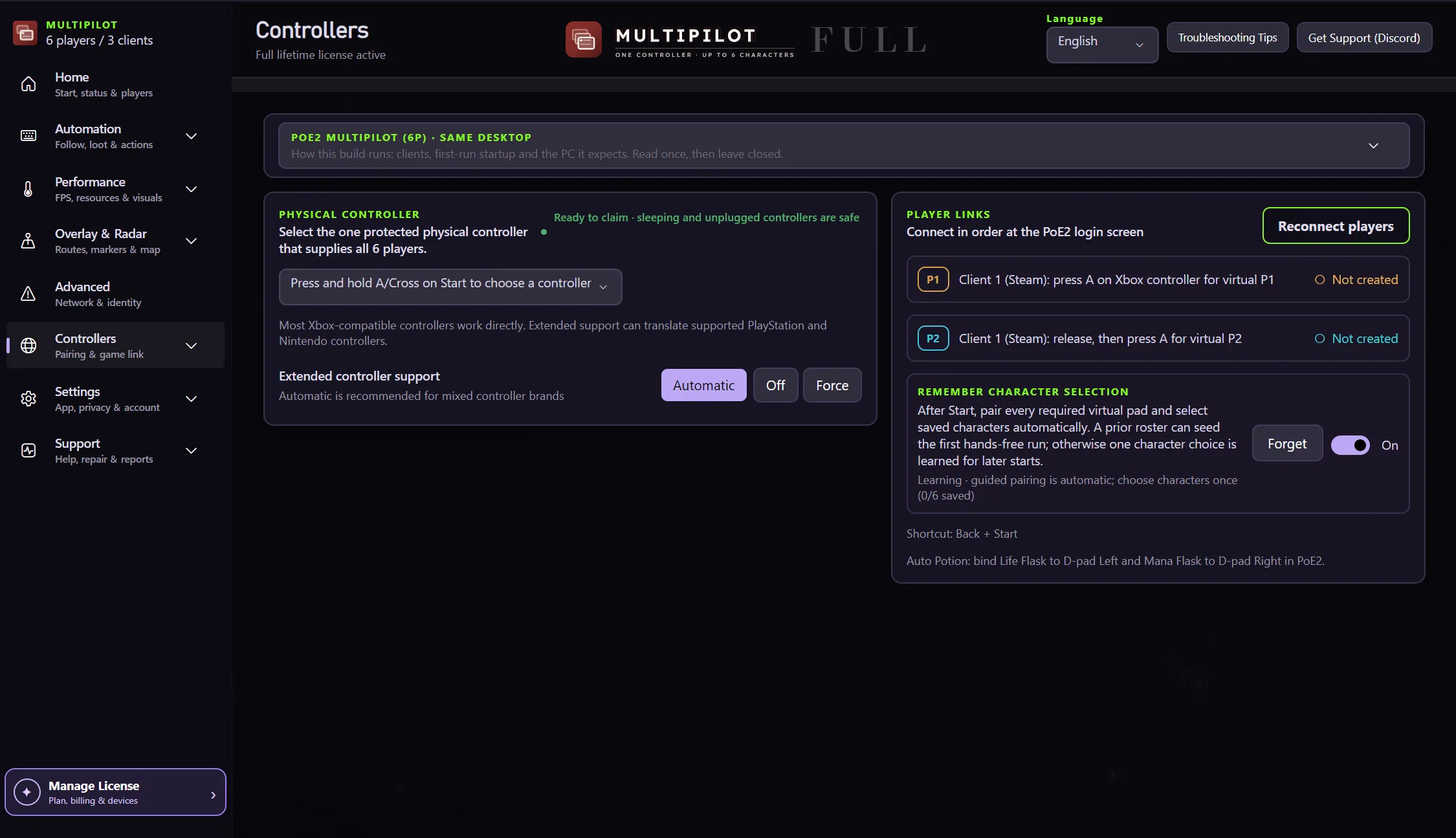
This is where you confirm the pad, create the player links and watch each character pair.
Let every client finish loading. Do not press A until the pairing window says READY. The status sits on top of the game windows while it waits.
If a client runs through Steam, open Path of Exile 2 Properties, then Controller, and choose Use default settings. Not Disable Steam Input.
In 4P–6P, the first isolated A press pairs P1 and the second pairs P2 after Client 1 passes its foreground gate. In 3P and split 2P, Client 1 pairs P1 only.
Use P1 focus to choose the first character. In 4P–6P, switch Smart Focus to P2 and confirm the second character so both Client 1 characters enter the game.
MultiPilot moves to Client 2 only after Client 1 is ready. Pair P3 then P4 for 3P–6P, or P2 for split 2P, and confirm each character through the displayed focus prompts.
After Client 2 is ready, 5P pairs P5 and keeps P6 disconnected; 6P pairs P5 then P6. Confirm each character only when its Client 3 prompt is visible.
Once the last client is in the game and the checks pass, focus returns to your first character and you take over.
Move the character it asks you to and confirm nothing else moves. If Client 1 fails, MultiPilot opens the illustrated Steam guide and offers to retry or stop safely.
The pairing tutorial appears on game relaunch by default. After completing it once, choose a 24-hour reminder pause or disable reminders until you want the guide again.